Your first day with FlexMaid
How to sign in, find the jobs you have been given, and know what to tap. Five minutes and you are set up.
Signing in
Your manager invites you by email. Open the link in that email and choose a password. After that you sign in at flexmaid.ca with your email and that password.
No email? Check your spam folder. If it is not there, ask your manager — they can set a password for you in a few seconds and tell you what it is.
Your home screen
The first thing you see is today: how many jobs you have, and a card for each one with the time, the client and the address.
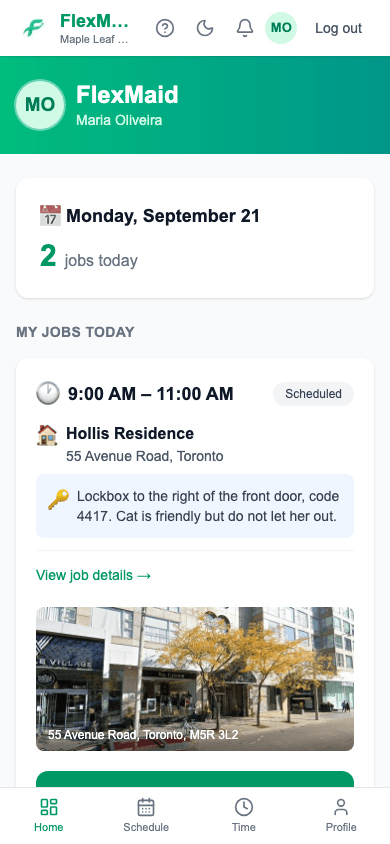
A blue box with a key on a job card is the entry instructions — the lockbox code, which door, whether there is a dog. Read it before you arrive.
Getting around
Four tabs along the bottom of the screen:
| Tab | What it is for |
|---|---|
| Home | Today's jobs. |
| Schedule | The days coming up. |
| Time | Entering your hours. |
| Profile | Your details and your days off. |

What to tap during a job
Step 1: Open the job from Home.
Step 2: On the way? Tap En Route.
This lets the office see the day is moving.
Step 3: Started? Tap In Progress.
This starts your clock.
Step 4: Finished? Tap Completed.
This stops your clock.
Forgot to tap?
It happens, and it is not a problem. Go to the Time tab and type in when you started and finished. See Logging your hours.
Common questions
- I cannot see today's job.
- Pull down to refresh first. If it is still not there, ask your manager to check that you are assigned to it and that it has a start time — jobs with no time set do not show up for cleaners.
- Can I see other cleaners' jobs?
- No. You only see the jobs you are on.
- Do I need to install an app?
- No, but you can add FlexMaid to your home screen so it opens like one. See Putting FlexMaid on your phone.
Related
Still stuck?
Email support@flexmaid.ca and tell us what you were trying to do. A real person answers.