Job details: getting in, notes and photos
Everything on a job card, where to find the entry code, and how to leave a note or a photo.
What is on a job
Tap a job to open it. You get the time, how long it is expected to take, the client's name and the address. Tap the address to open it in your maps app.
Underneath there is a street-level photo of the address, so you know what you are looking for before you get there. It is especially worth a glance for a house on a street of lookalikes.
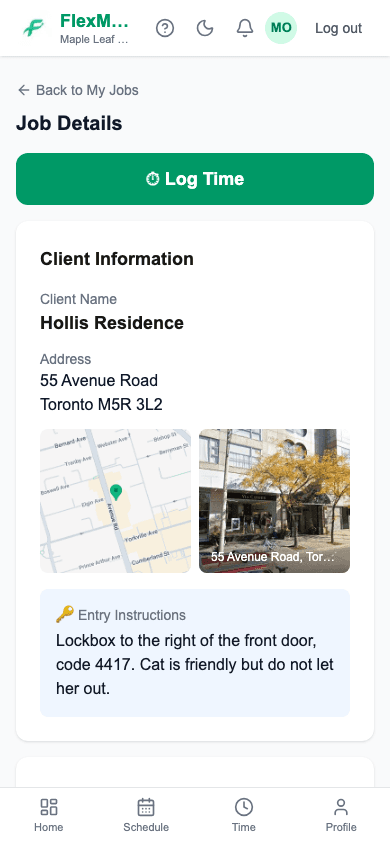
Getting in
Entry instructions are in the blue box with the key. Lockbox code, which door, where to park, the dog's name. If it is empty and you cannot get in, call your manager — their number is at the bottom of your home screen.
You will not see the client's phone number or email. That is deliberate — the office handles contacting clients.
Leaving a note
There is a notes box on every job. Use it for anything the office should know: something was broken before you arrived, the client asked for something different next time, you could not get into a room. Your manager sees it on the job.
Adding a photo
You can add photos to a job from your phone. Worth doing for damage you found, a finished room a client was particular about, or anything you would otherwise have to describe in words.
Past jobs
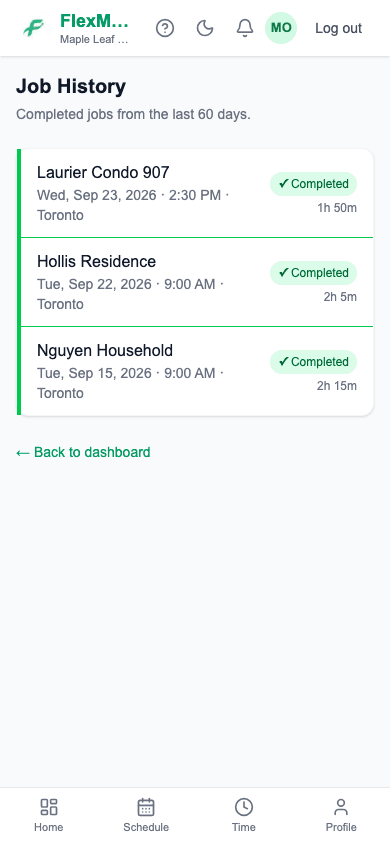
📋 View past jobs at the bottom of your home screen shows what you have completed in the last 60 days, with the hours recorded against each one.
Common questions
- The address is wrong.
- Tell your manager — they can fix it on the client so it is right for everyone next time.
- Can the client see my notes?
- No. Notes go to your manager only.
- How do I say I cannot make a job?
- Tell your manager directly. You cannot hand a job back inside the app.
Related
Still stuck?
Email support@flexmaid.ca and tell us what you were trying to do. A real person answers.