Invoicing a client
Turn a completed job into an invoice, keep track of what is outstanding, and mark it paid.
Creating an invoice
Step 1: Open a completed job from your Schedule.
Step 2: Click Create Invoice.
The button only appears once the job is completed — the page says "Available once the job is completed" until then.
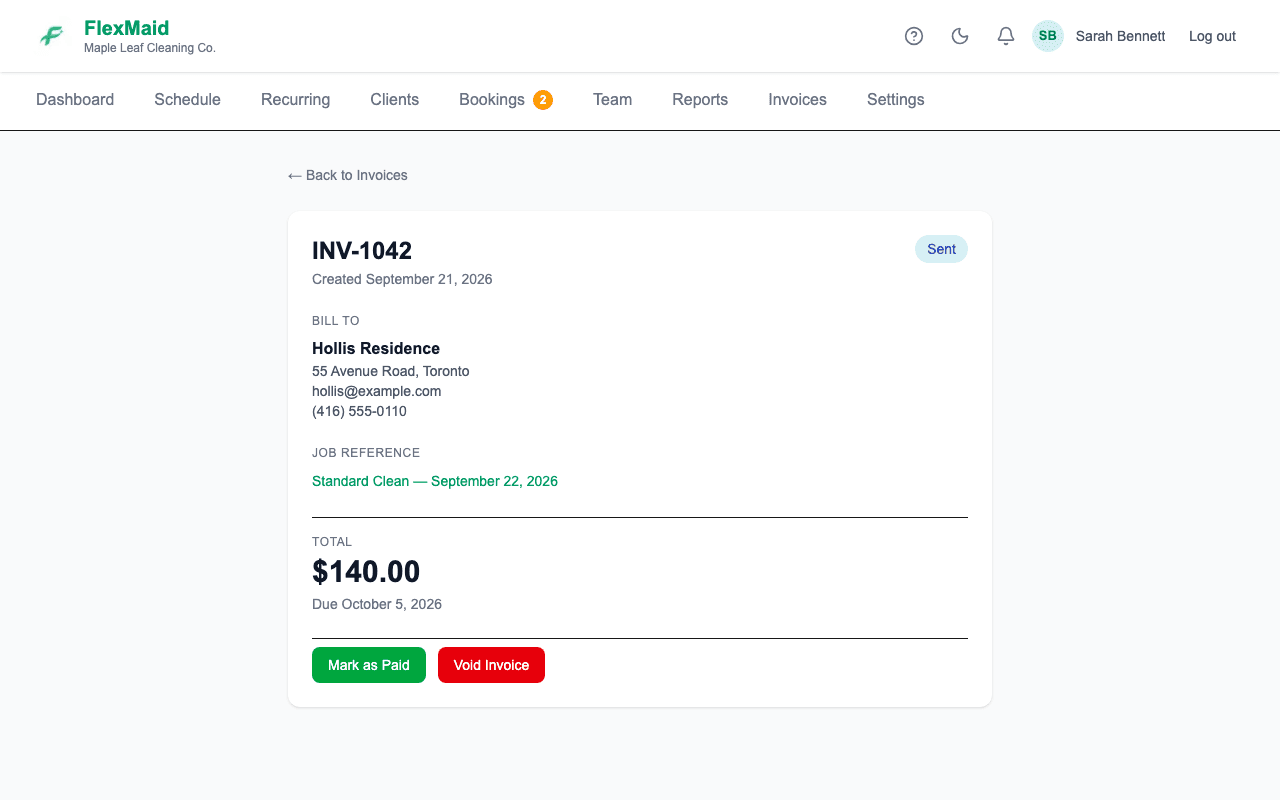
Step 3: The invoice opens, filled in from the job: client, service, date and price.
Sending it
Print the invoice or save it as a PDF from your browser's print dialog, then send it however you normally reach that client. FlexMaid does not email invoices for you yet.
Keeping track
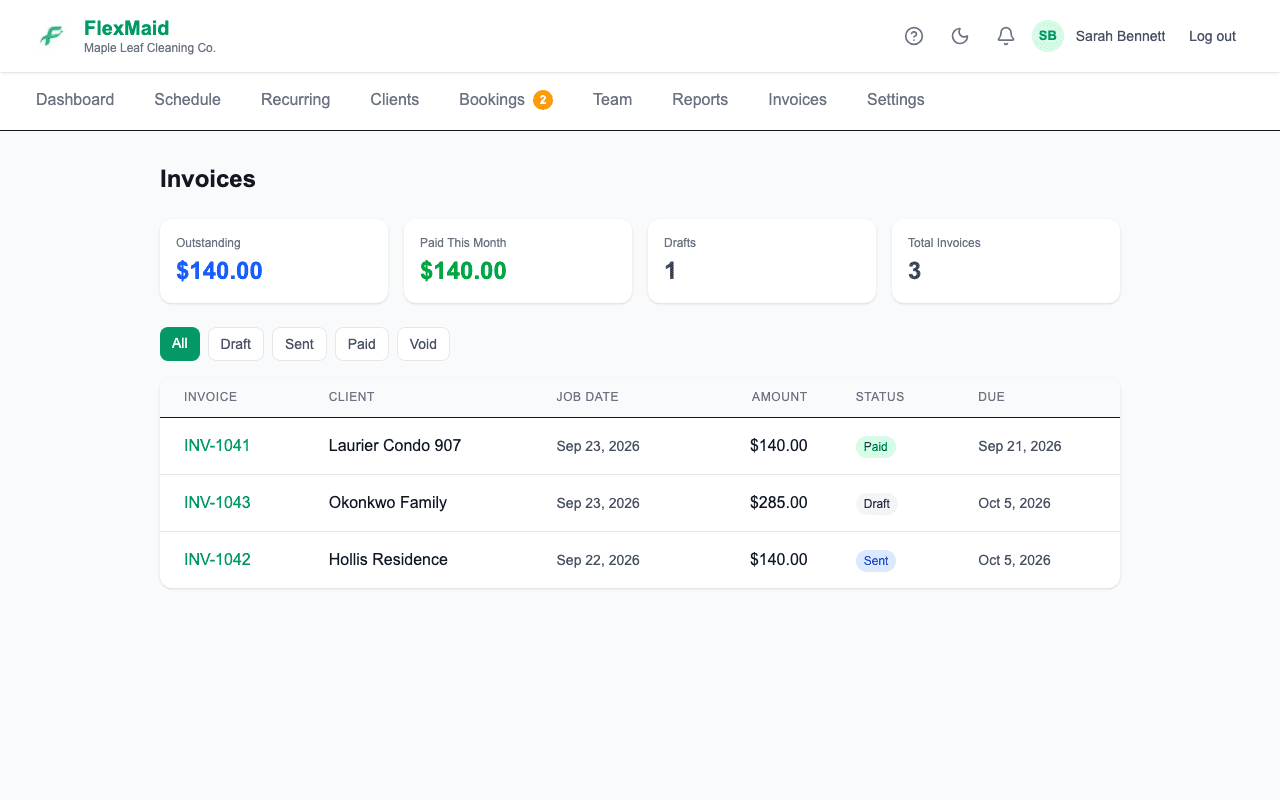
The Invoices page totals what is outstanding, what is still a draft, and what has been paid this month. When the money arrives, open the invoice and use Mark as Paid.
Common questions
- Can clients pay online?
- Not yet. Card payments are on the roadmap and are not built.
- Can I invoice a month of jobs on one invoice?
- Not today — invoices are created from a single job. For a monthly bill, export the client's history from their page and invoice from that.
- Why is Create Invoice greyed out?
- The job is not completed yet.
Related
Still stuck?
Email support@flexmaid.ca and tell us what you were trying to do. A real person answers.