Reports and payroll
Work out what you owe each cleaner, what your clients still owe you, and what you earned and from whom — then export any of it as a spreadsheet.
This week
Reports opens on This Week — week to date, running Monday to Sunday. Three tabs across the top take you further: Dashboard (this page), Time Tracking and Revenue.
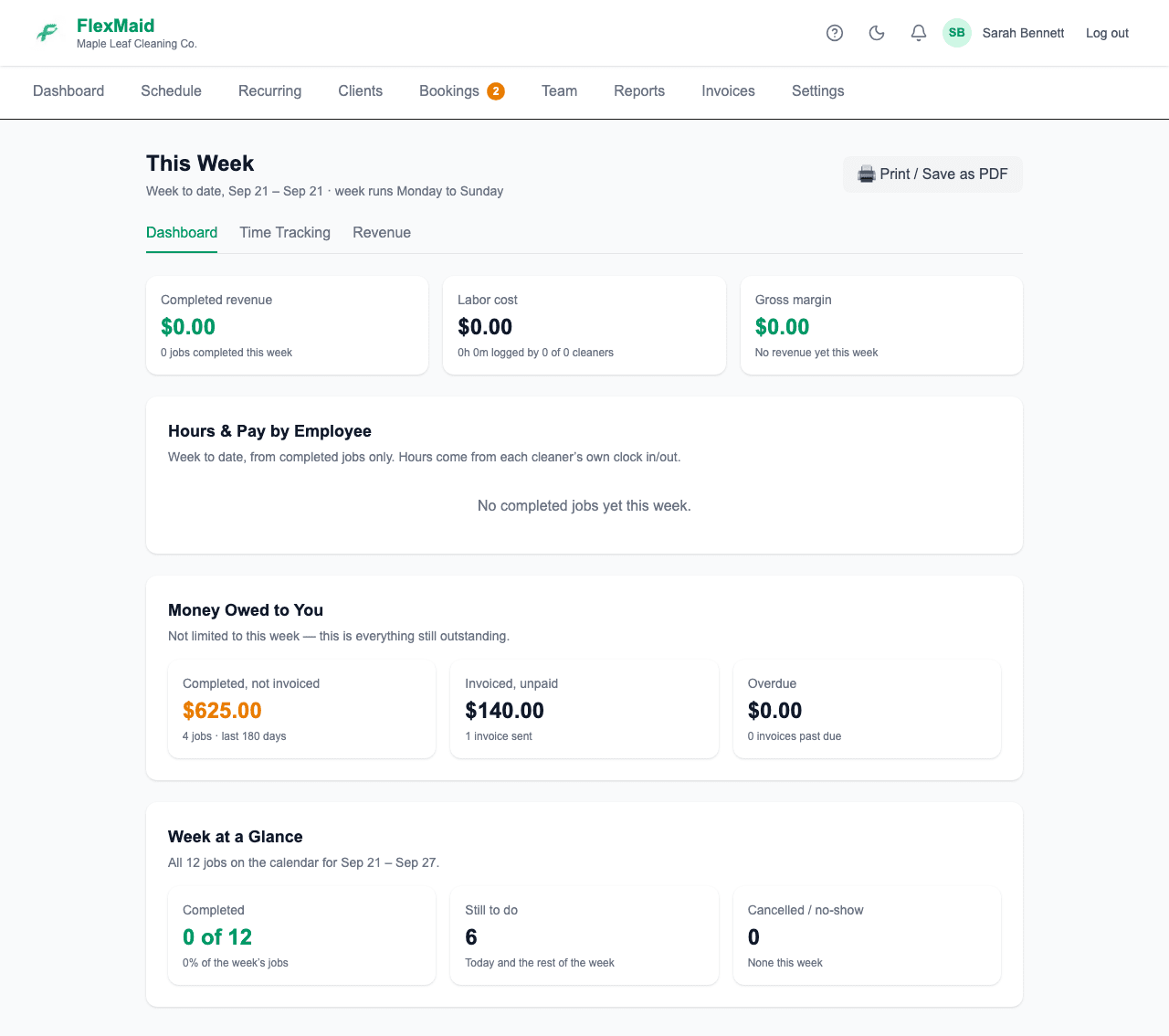
The page answers four separate questions, and it is worth knowing which is which:
| Section | What it tells you |
|---|---|
| The three cards at the top | Completed revenue from this week's finished jobs, your Labor cost for them, and the Gross margin between the two. |
| Hours & Pay by Employee | Your payroll. Each cleaner's jobs, hours, rate and what you owe them. This is the payday table. |
| Money Owed to You | Money coming in, not going out. What is completed but not invoiced, what is invoiced but unpaid, and what is overdue. Not limited to this week. |
| Week at a Glance | Every job on the calendar this week: completed, still to do, and cancelled or no-show. |
Two different kinds of "owed"
It is easy to read Money Owed to You as wages. It is the opposite — it is what your clients still owe you. What you owe your cleaners is Hours & Pay by Employee, above it.
Hours here come from each cleaner's own clock in and out on completed jobs. Print / Save as PDF in the corner gives you the whole page to keep or hand on.
A cleaner showing No rate set has no hourly rate on their profile, so nothing can be calculated for them. Set it from the Team page and the figure appears.
The Time Tracking report
Pick any date range and you get hours by cleaner plus a line for every job — date, client, in, out, duration. The total labour cost at the bottom is what that range costs you in wages.
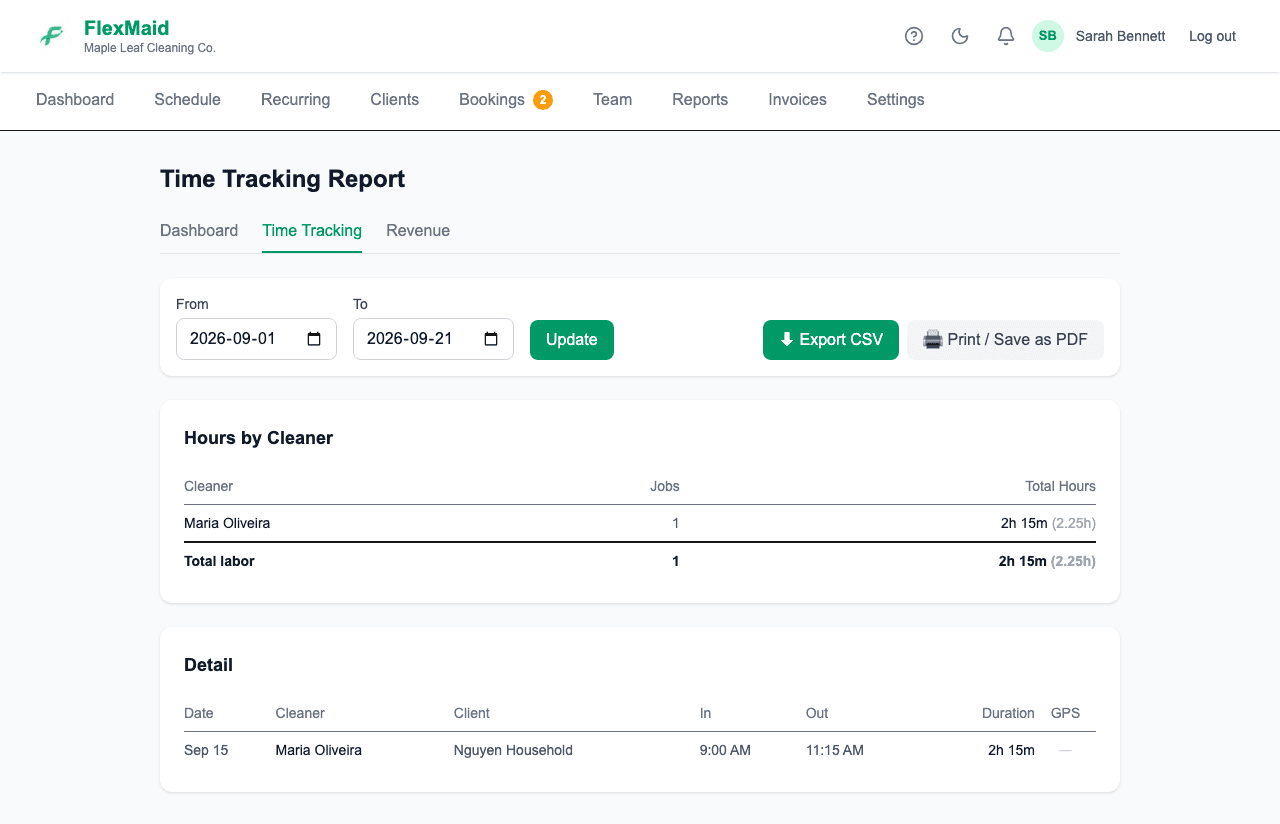
⬇ Export CSV gives you the same range as a spreadsheet to hand to a bookkeeper.
The Revenue report
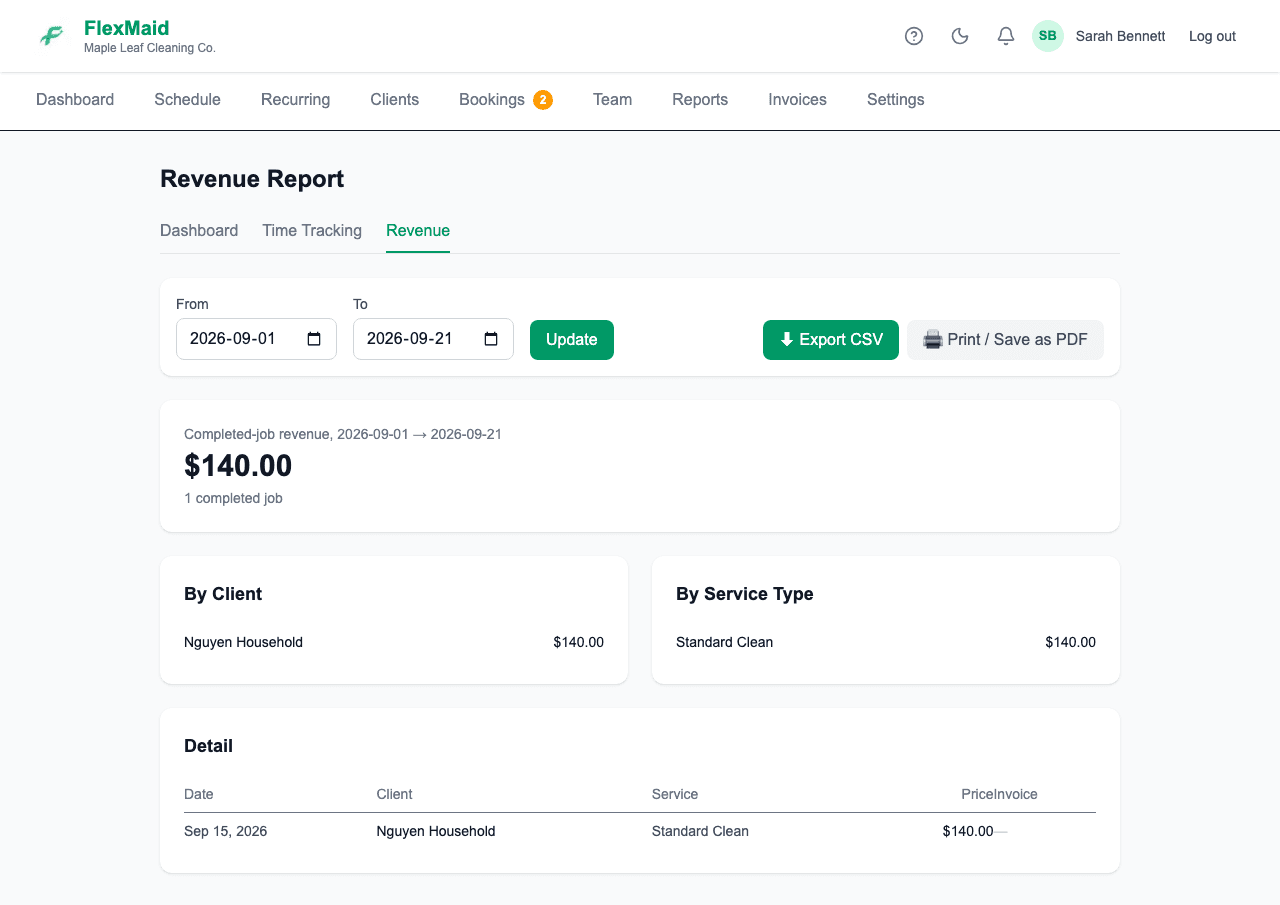
Same idea, money side. Completed jobs over a date range, broken down By Client and By Service Type — which is how you find out that move-outs are a third of your revenue, or that one client is a quarter of your book.
What counts
- Hours come from completed jobs that have both a start and an end time. A job left In Progress contributes nothing.
- Revenue comes from completed jobs only. Scheduled work is not counted until it is done.
- Cancelled and no-show jobs are in neither.
- Everything is shown in your business time zone, set under Settings → Business.
Common questions
- A job is missing from my hours report.
- It needs to be Completed and have both a start and an end time. If the cleaner never logged theirs, the job has no duration to report.
- Can I see a single cleaner over a whole month?
- Yes — set the date range on the Time Tracking report and read their line under Hours by Cleaner.
- Is "Money Owed to You" what I owe my cleaners?
- No — it is the opposite. That section is money your clients still owe you: completed but not invoiced, invoiced but unpaid, and overdue. Wages are in Hours & Pay by Employee, just above it.
- When does the reporting week start?
- Monday, running through Sunday. The Reports page says the exact dates it is covering under the heading.
- Does FlexMaid pay my cleaners?
- No. It tells you what is owed. Paying is up to you.
- Does revenue include tax?
- It totals exactly the prices you put on your jobs. If your prices include tax, so does the report.
Related
Still stuck?
Email support@flexmaid.ca and tell us what you were trying to do. A real person answers.