Managing your clients
Add clients, keep entry instructions where your cleaners can actually use them, control what stays private, and archive clients you have stopped serving.
Your client list
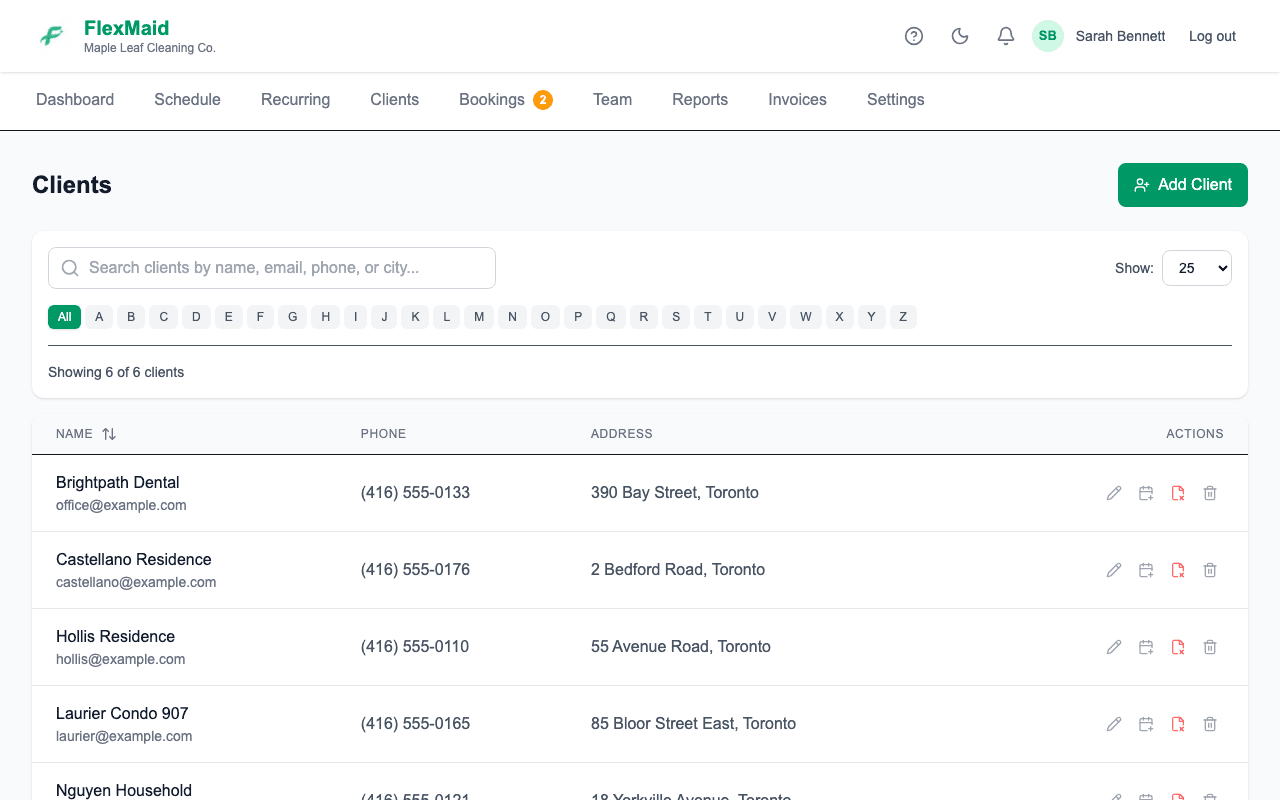
The Clients page lists everyone you serve. The search box matches on name, email, phone or city, so a half-remembered street is enough to find someone.
Adding a client
Step 1: Click the add-client button on the Clients page.
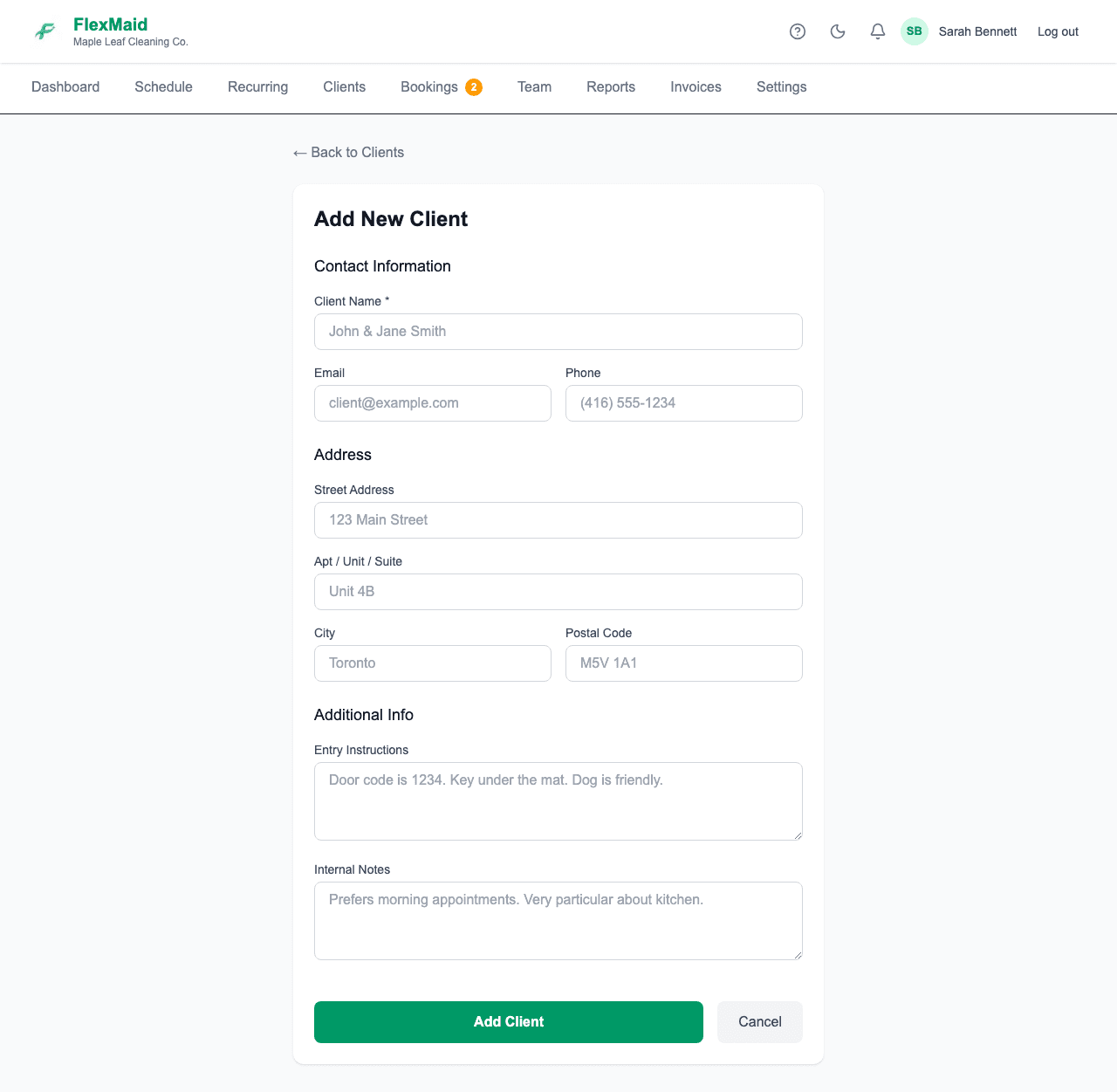
Step 2: Type the address and pick it from the suggestions.
Choosing a suggested address rather than typing it freehand is what makes the map and the travel-time estimate work later.
Step 3: Put access details in Entry instructions.
Lockbox code, which door, where to park, whether there is a dog.
What your cleaners can and cannot see
| Field | Cleaner assigned to the job |
|---|---|
| Client name | Visible |
| Address | Visible |
| Entry instructions | Visible |
| Phone number | Not visible |
| Email address | Not visible |
| Internal notes | Not visible |
| Price | Not visible |
This is enforced in the database, so it holds everywhere — the web app and the phone app alike. If you want a cleaner to be able to reach a client, put what they need in the entry instructions or in the job notes.
Archiving a client
When you stop serving someone, archive them rather than deleting. They come off your working list but their job history, and the revenue you earned from them, stay in your reports. Use the Show control on the Clients page to see archived clients again.
Client history
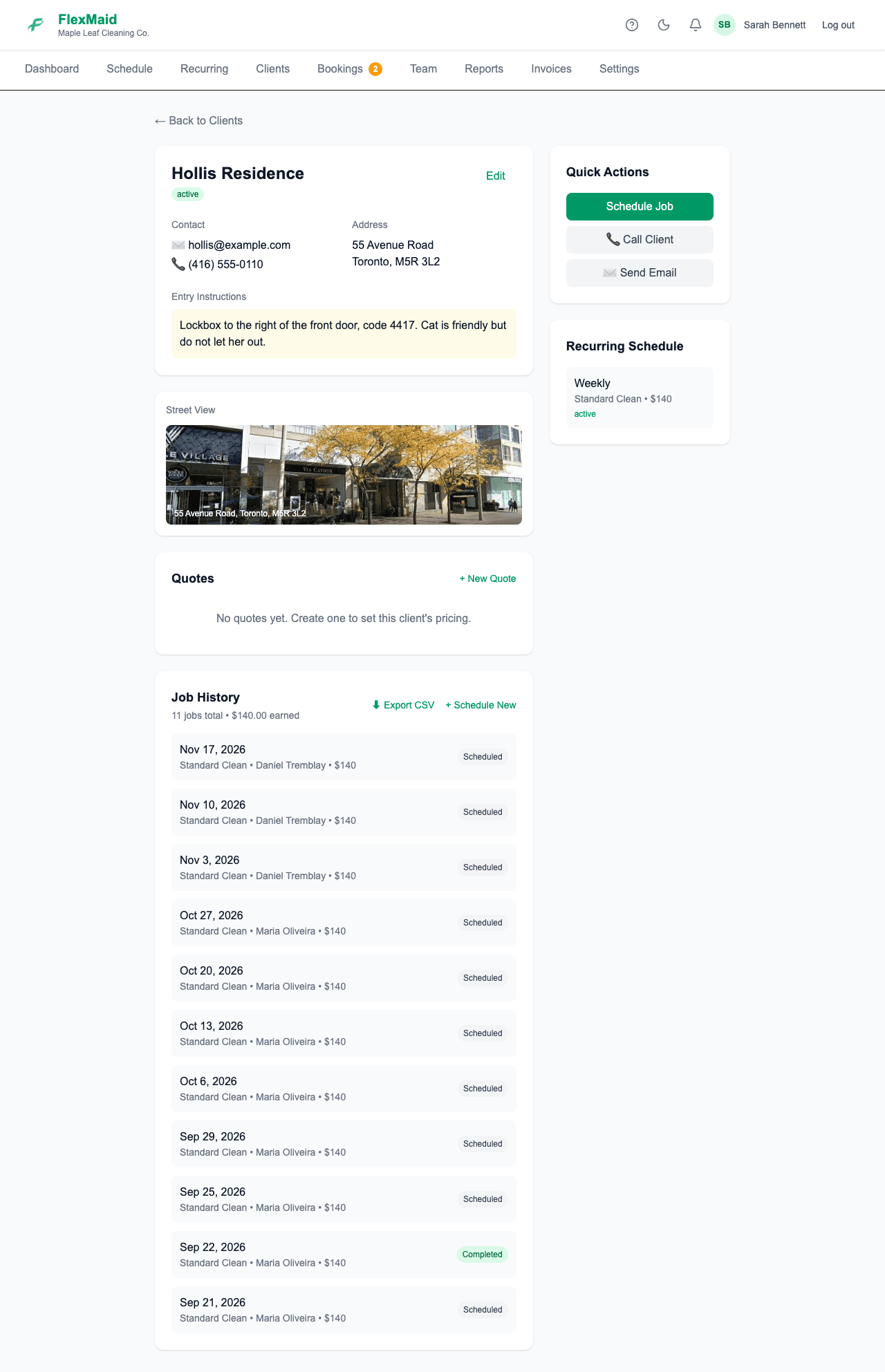
Open a client to see every job you have done for them. ⬇ Export CSV on that page gives you their full history as a spreadsheet — handy when a client asks what they were charged and when.
Common questions
- Can I delete a client entirely?
- Archiving is what you want in almost every case, because deleting takes their job history and revenue out of your reports with them.
- My cleaner needs to phone the client.
- Cleaners cannot see client phone numbers by design. Put the number in the job notes for that visit, or make the call yourself.
- The address suggestions are not finding a new build.
- Type the address manually. Everything works except the map preview and travel-time estimate, which need a recognised address.
Related
Still stuck?
Email support@flexmaid.ca and tell us what you were trying to do. A real person answers.