Scheduling a job
Book a one-off job, assign a crew, change the crew later without losing anyone's hours, and use the Anytime tray for work you have not slotted in yet.
Getting around the schedule
Schedule is your main screen. Four views along the top change how much you see at once: Today, 3-Day, Week and Work week. It opens on 3-Day, which is the useful default on a laptop — switch to Week when you are planning ahead. ← Prev and Next → move by whatever you are looking at, and Today brings you back.
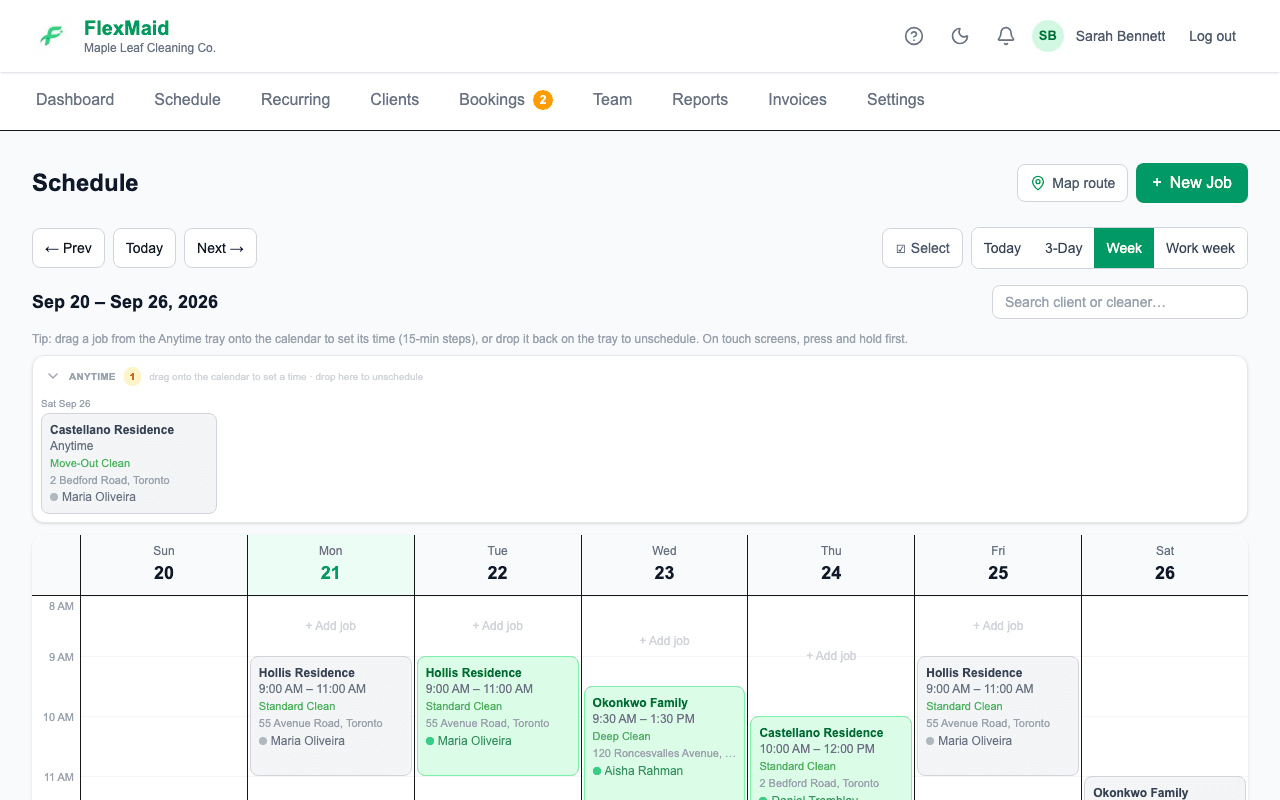
The search box filters by client or cleaner, which is the quickest way to answer "where is Maria today?" without reading the whole grid.
Map route opens the addresses for the selected day in Google Maps, in schedule order — useful for handing a driving order to whoever is covering the day.
Booking a job
Step 1: Click New Job on the Schedule page.
Step 2: Search for the client by name.
If they are not in your list yet, add them first from the Clients page.
Step 3: Choose the service.
The price and estimated duration fill in from that service type. Change either one on this job without affecting the service itself.
Step 4: Set the date and start time.
Step 5: Tick everyone who is working this job.
The first person you tick becomes the primary cleaner — the one shown against the job everywhere in the app. The rest are the crew.
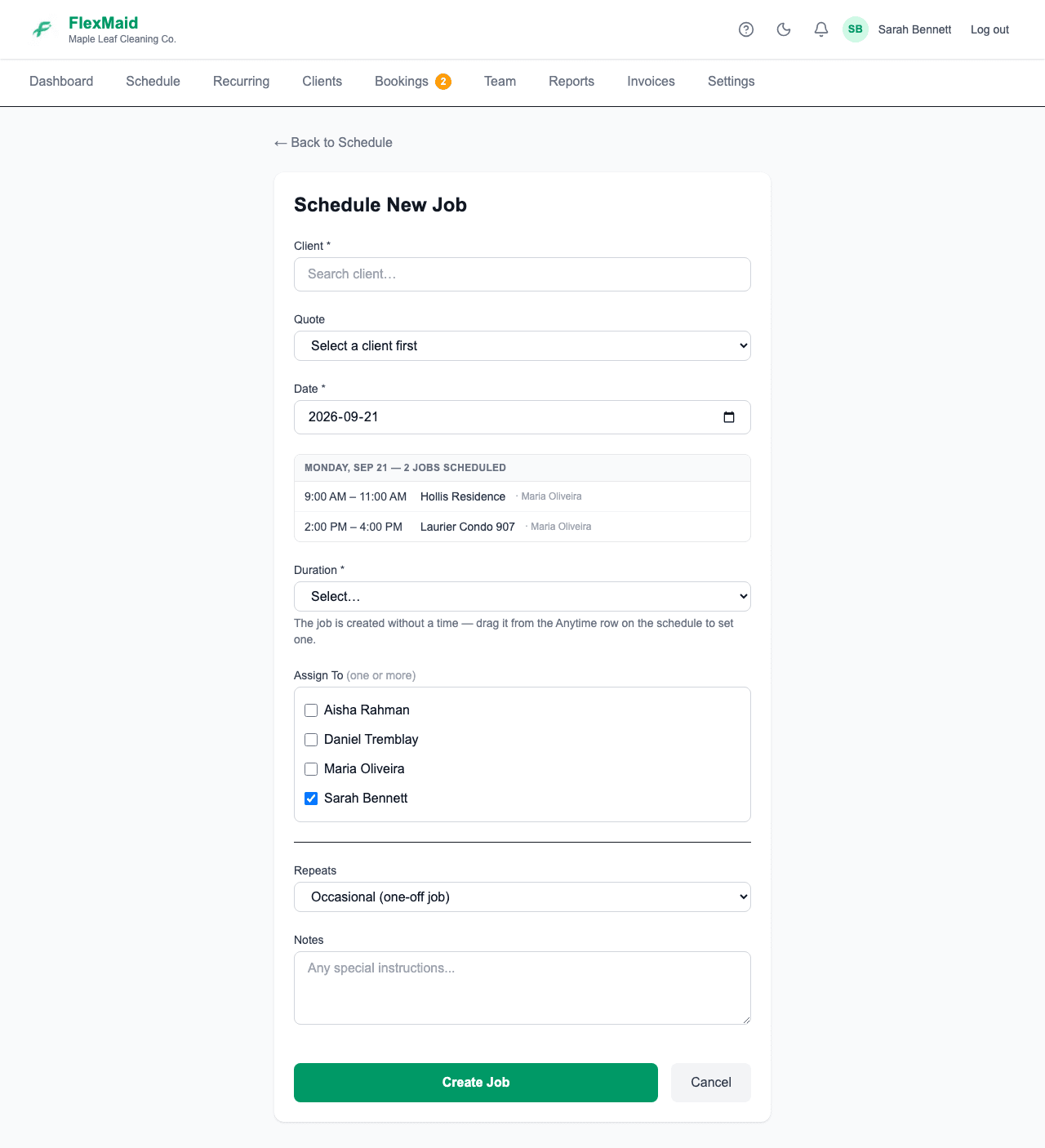
Step 6: Add anything the cleaner should know in the notes, then save.
Each assigned cleaner gets a notification straight away.
The Anytime tray
Jobs with no start time land in the ANYTIME tray, a strip above the calendar. It is the holding pen for work you have agreed to but not slotted in, and the number beside the heading is how many are waiting.

- Drag a job from the tray onto the calendar to give it a time. It snaps to 15-minute steps.
- Drag a scheduled job back onto the tray to unschedule it again.
- On a touch screen, press and hold before dragging.
- Collapse the tray with the arrow in its header if it is in your way — it stays collapsed next time.
Cleaners cannot see jobs in the tray
Untimed jobs are yours alone until they have a time. The same is true of jobs you have cancelled or marked as a no-show — they stay on your grid but disappear from the cleaner's phone.
Changing the crew on a job
Open the job and edit it. Tick and untick people, and save. Everyone who stays on the job keeps the hours they have already logged — FlexMaid works out the difference rather than rebuilding the crew from scratch.
If you remove someone who had already logged time on that job, their hours go with them. Check the timesheet before you take someone off a job they have already worked.
Changing several jobs at once
Click ☑ Select above the calendar to switch into selection mode, then click each job you want. The bar at the top counts what you have picked and offers ✓ Complete and ✕ Cancel, which apply to all of them at once.
This is the fast way to close off a day at 5pm, or to clear a week a client is away for. You are asked to confirm before anything changes.
Cancelling a job
Open the job and set its status to Cancelled, or No Show if the client was not there. It stays on your schedule, greyed out, so your history stays honest — and it drops off the assigned cleaner's phone so they do not turn up.
Common questions
- My cleaner says the job is not on their phone.
- Almost always one of three things: the job has no start time and is sitting in the Anytime tray; the job is cancelled or marked no-show; or they are not actually ticked on the job. Open the job and check the crew list.
- Can I book a job without assigning anyone?
- Yes. Leave every cleaner unticked. The job shows as unassigned on your schedule until you edit it and add someone.
- Can I drag a job to a different day?
- Yes — drag it on the calendar, and it snaps to 15-minute steps. Dragging a job onto the Anytime tray removes its time instead. On a touch screen, press and hold first.
- Why does my schedule only show three days?
- Three-day is the default view. Click Week or Work week along the top to see more at once — your choice is remembered for the rest of the day.
- Why is the price on this job different from my service price?
- The service price is only a starting point. Whatever you typed on the job itself is what the job is worth, and what shows up in your Revenue report.
Related
Still stuck?
Email support@flexmaid.ca and tell us what you were trying to do. A real person answers.