Taking bookings from your website
Turn on your booking page, share it or embed it on your own site, and review the requests that come in.
Turning it on
Step 1: Go to Settings → Booking.
Step 2: Switch on Accept booking requests online.
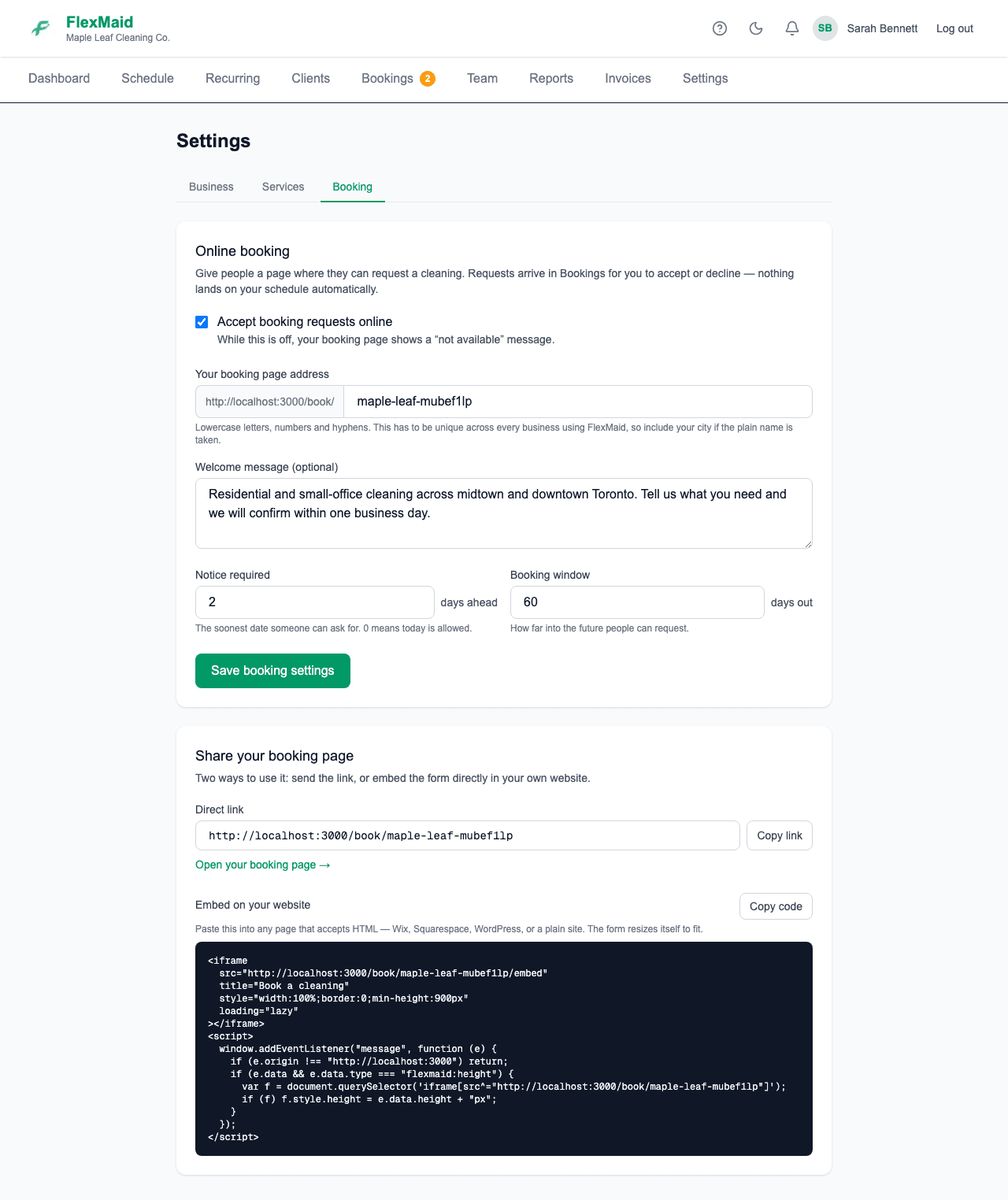
Step 3: Set Notice required — how soon someone may book.
Stops a stranger booking you for tomorrow morning when your day is already full.
Step 4: Set the Booking window — how far ahead people may book.
Step 5: Write a short description of what you offer and your service area.
This shows at the top of your booking page. It is the only sales copy on it, so make it count.
Sharing your booking page
The same settings page gives you a Direct link — your own address at flexmaid.ca — that you can put in an Instagram bio, a Google Business profile or an email signature.
If you have your own website, use Embed on your website instead. Copy the snippet, paste it into your site, and the booking form appears inside your own page rather than sending people away.
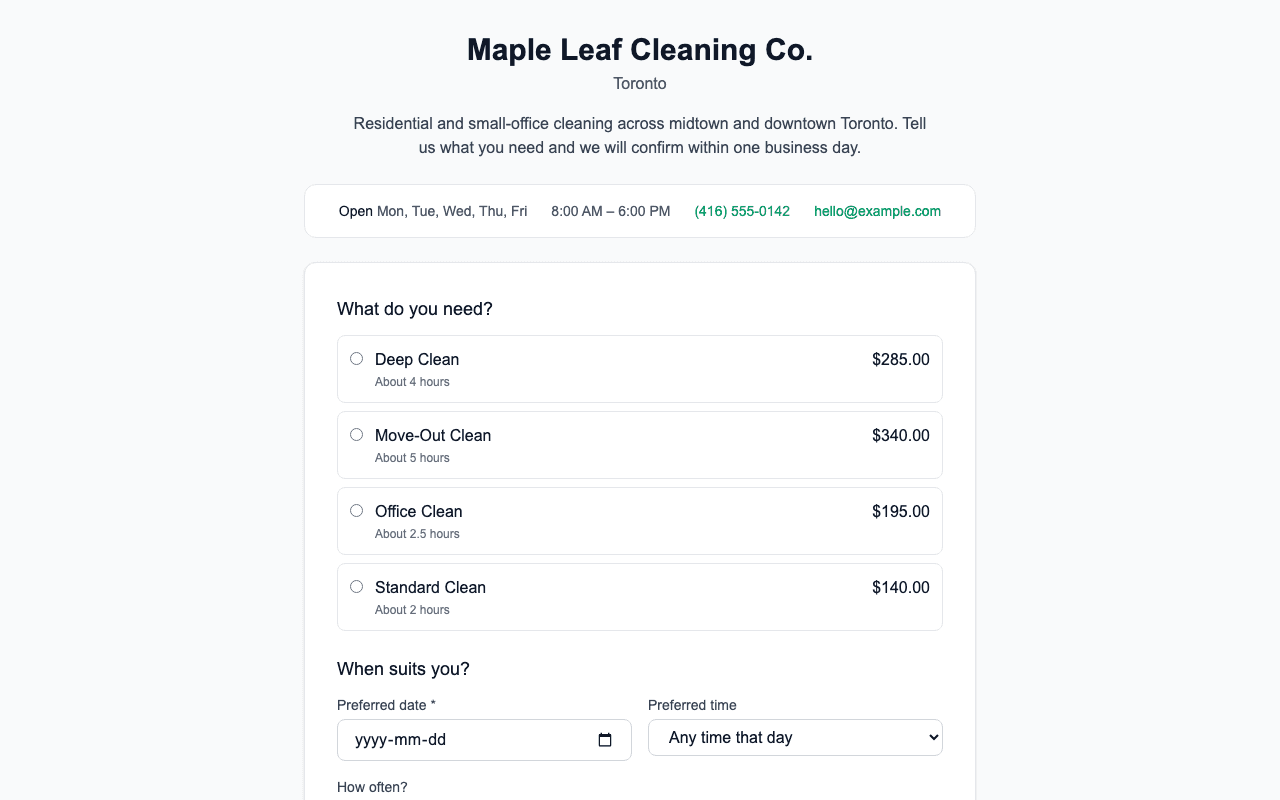
Your prices go public
The booking page lists every service type with its price and rough duration, alongside your hours, phone number and contact email from Settings → Business. If there is a service you do not want quoted publicly, take it out of your service types before you switch booking on.
Reviewing requests
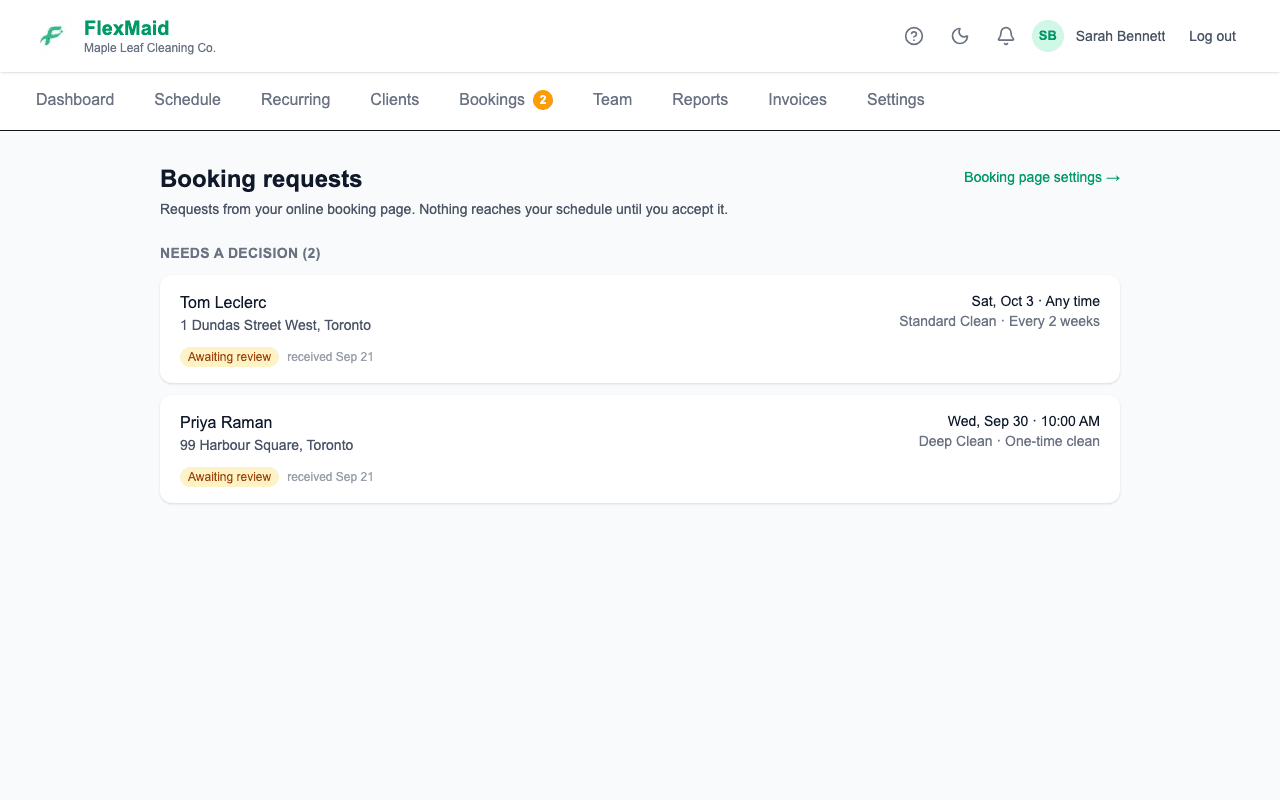
A request is not a booking. It arrives on the Bookings page with a badge on the menu showing how many are waiting, and nothing goes on your schedule until you approve it.
Nothing tells you a request came in
There is no email or text alert yet. Get into the habit of checking the Bookings badge daily, or someone will wait days for an answer.
Common questions
- Does approving a request create the job?
- Yes — approving puts it on your schedule. Then assign a cleaner the same way you would for any job.
- Can people pick which cleaner they want?
- No. They request a service and a time; who goes is your call.
- Will the embed work on Wix, Squarespace or WordPress?
- Yes — anywhere you can paste an HTML embed block. If your site builder strips the snippet, use the direct link instead.
- Does the client get a confirmation?
- They see a confirmation on screen when they submit. Automatic confirmation emails are not built yet, so tell them you will be in touch.
Related
Still stuck?
Email support@flexmaid.ca and tell us what you were trying to do. A real person answers.